Want list tool: five knowns for every saved find
A small notebook in your browser. Add the pieces you are considering, tick what you already know, and it tells you which finds are ready for CNFans and which question each of the others is waiting on.
Your want list
Add each find you are thinking about. Tick what you already know, leave the rest open, and the panels underneath sort the list for you. Everything stays in this browser.
Your finds
Nothing saved yet.
Work to do, grouped
Open questions will be grouped here, so you can clear one kind at a time.
Using the want list, move by move
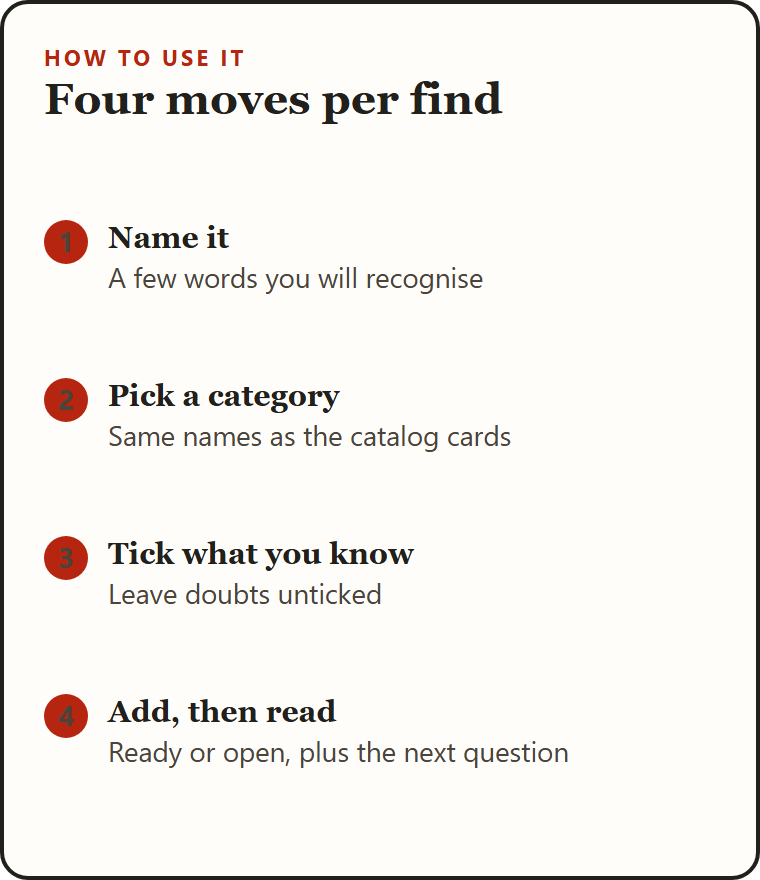
Here is how to use the tool, one find at a time. Type a short name you will recognise later, pick the category, and tick any of the five knowns you have already settled. Press add. The find appears in the left panel marked ready or open, with the next question to answer written under it.
The right panel groups the open questions by kind. All the finds that still need their source listing opened sit together, then all those that need an option written down, and so on. Clearing one kind at a time is quicker than jumping between listings: open five seller pages back to back, then read five size charts back to back.
To update a find, delete it and add it again with the new ticks. When the list is ready, the copy button puts it on your clipboard as plain text, one find per line, which is handy to paste into a note before you place the order.
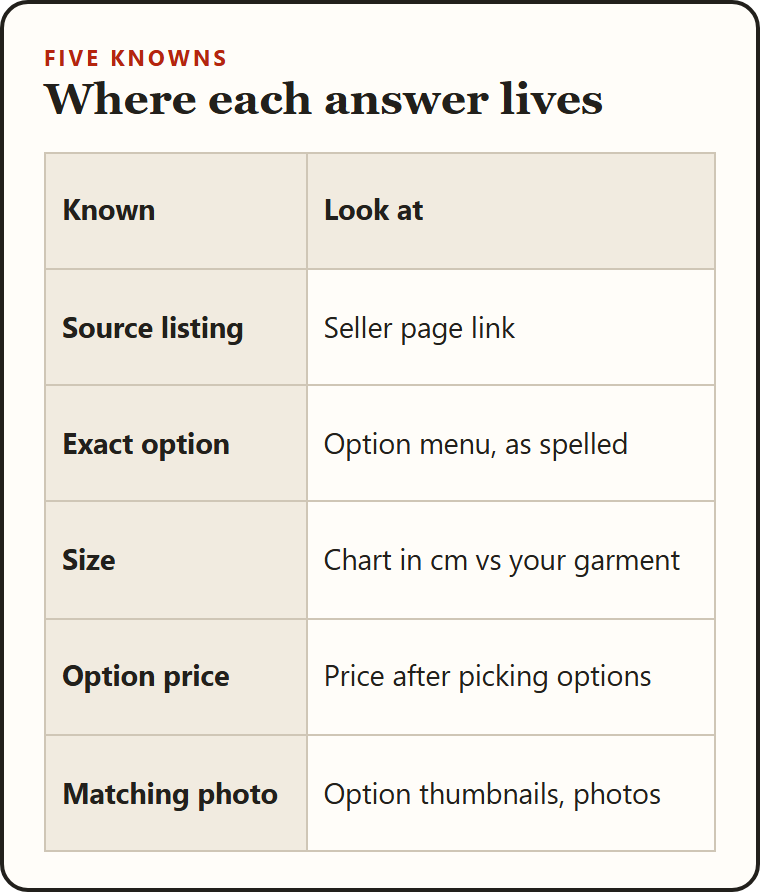
Each known, and where its answer lives
Source listing. The catalog card links to a product page, and that page leads to the seller’s listing. Open it. If it fails to load or shows a different item, the find is not orderable as it stands.
Exact option. Copy the option name in the seller’s own words, Chinese characters included. On the track pants we checked, the colours were 黑色 and 灰色; writing “dark” instead invites a mix-up.
Size. Read the chart in centimetres and compare one measurement with a garment you own. One-size items still have measurements; check them. Option price. Find the price for your exact combination; the card shows the cheapest one. Matching photo. Make sure at least one photo shows your option. Many sellers attach a small picture to each colour in the menu; that counts.
Ready, read correctly
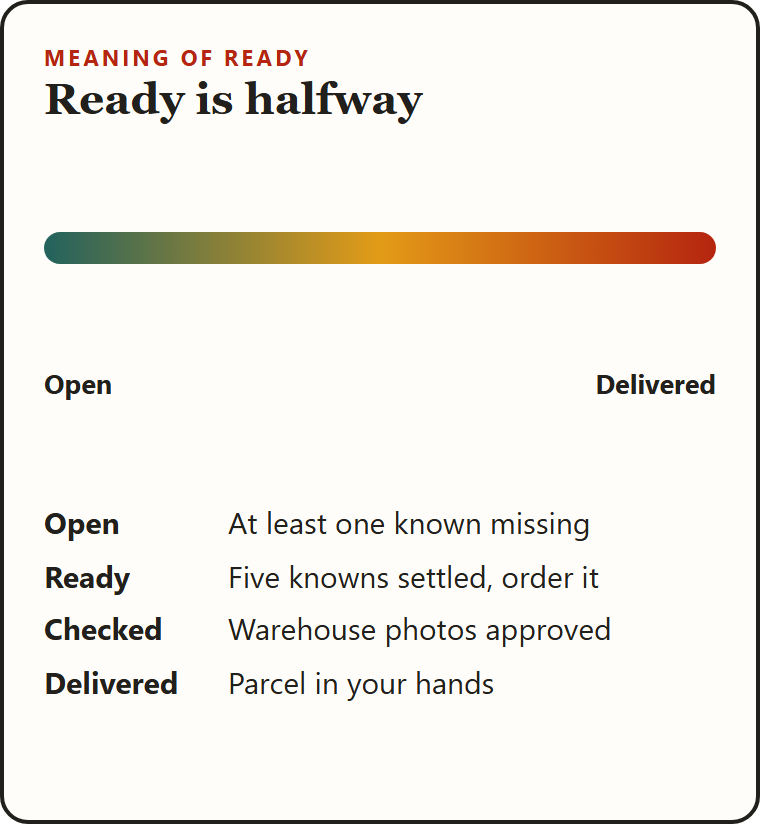
Ready means you have answered the questions that can be answered before buying. It does not mean the piece will be perfect. The seller can still post the wrong colour, the stock can run out between your check and the order, and the warehouse photos may show a flaw.
That is why the tool stops at five. Everything after them is checked later, on real evidence: the warehouse photo set, the parcel weight, the line price. Trying to settle those in advance only produces guesses.
Open is not a failure either. Some finds stay open for weeks while you wait for a seller’s answer about a measurement. Keep them on the list; just do not send them to the agent until they turn ready.
Three finds walked through the tool
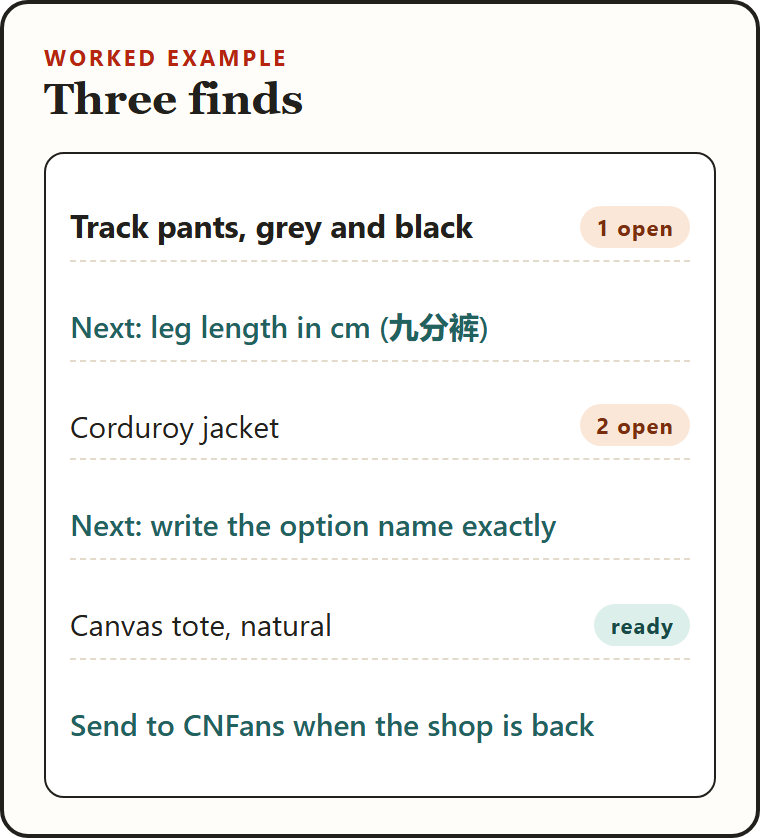
Here is how a list might look, built around one real listing we checked on 20 October 2026 and two imagined ones. The real one is the grey and black track pants. Its seller listing opened, the option menu named 黑色 and 灰色, every combination cost ¥95.33 and each colour had its own picture. Four knowns ticked.
The size stayed open. The seller’s title says 九分裤, nine-tenths length, so the hem is meant to sit above the ankle. Without the leg length in centimetres we could not tell how that would fall on a particular person, so the tool listed “size” as the next question.
The two imagined finds show the other common cases: a jacket whose listing opened but whose option names were vague, and a tote that was ready on all five counts. The panel grouped the work as one size question and one option question, both answerable in a single evening.
Where the list is stored, and how to clear it
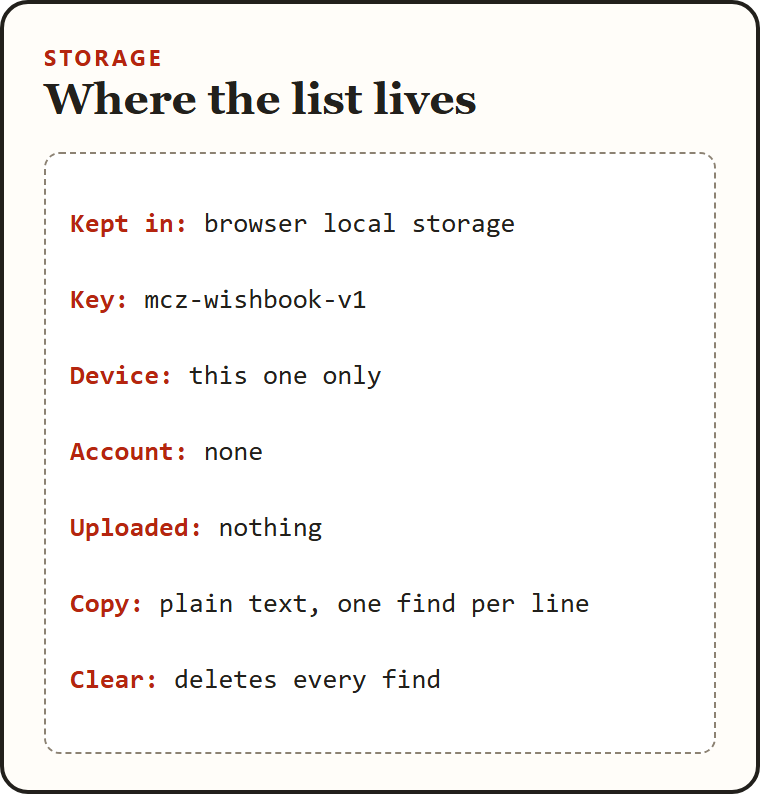
The list is saved in your browser’s local storage under one key, on this device only. We do not run a server for it, there is no account, and nothing is sent anywhere when you add or delete a find. Another browser or another phone will not see it.
Private windows usually throw local storage away when they close, so a list made there will vanish. If you want a lasting copy, use the copy button and paste the text somewhere you keep notes.
The clear button deletes every find after asking you to confirm. Clearing your browser’s site data does the same. Neither action can be undone, which is the price of keeping the list off our hands entirely.